Video Editing Workflow: How Do You Edit Videos Faster?
If your video edits take too long, the problem is not always your editing skill. Often, the problem is the order. A video editing workflow helps you organize footage and create a rough cut. It also refines the edit, exports versions, and speeds up video finishing.
What Is a Video Editing Workflow?
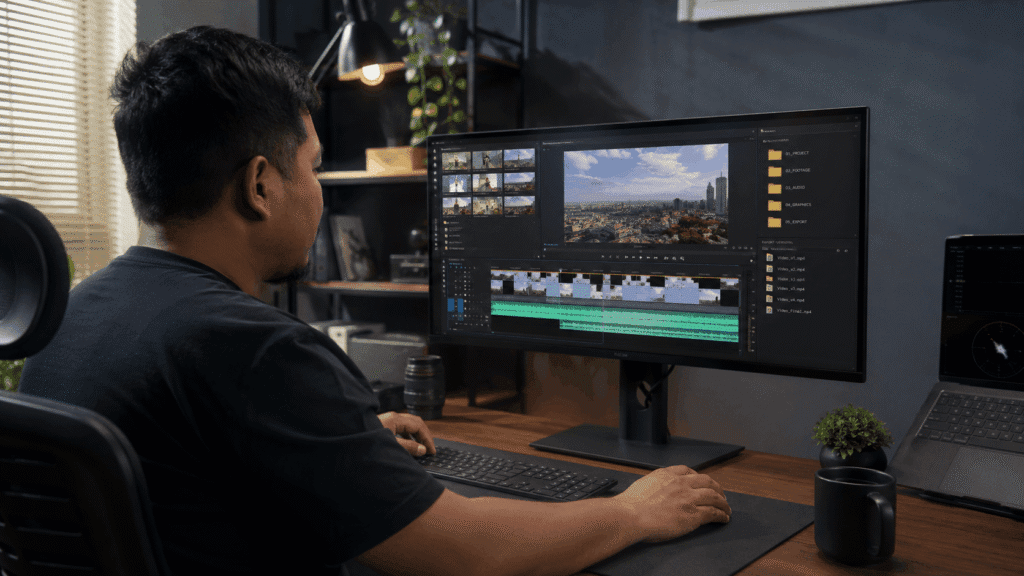
A video editing workflow is what you do after filming.
It helps turn raw footage into a finished video.
It usually includes:
- Organizing footage
- Selecting clips
- Creating a rough cut
- Making a fine cut
- Adding music and sound
- Adding subtitles
- Incorporating graphics
- Doing color correction
- Exporting
- Reviewing
- Archiving
Video production starts before filming.
Video editing workflow starts when the footage is already captured.
Without a workflow, editing becomes random.
You may jump from cutting clips to adding music, then color grading, then going back to fix the structure.
That slows everything down.
A clear workflow does not remove creativity.
It gives your creativity a clean path to follow.
Quick Answer: A 7-Step Video Editing Workflow
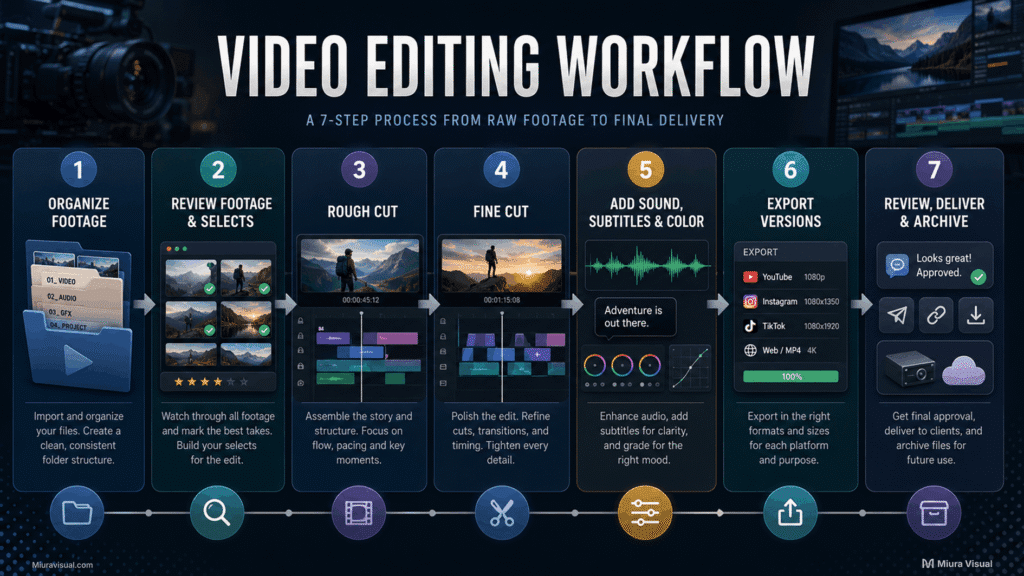
A simple video editing workflow has seven steps.
Organize Footage → Review Footage and Create Selects → Build the Rough Cut → Refine the Fine Cut → Add Poish → Export Versions → Review and Archieve
| Step | What To Do |
|---|---|
| 1. Organize footage | Sort video, audio, music, graphics, and project files |
| 2. Review footage and create selects | Watch the clips and pull usable footage into a selects timeline |
| 3. Build the rough cut | Arrange the basic structure before polishing |
| 4. Refine the fine cut | Improve pacing, timing, and flow |
| 5. Add polish | Add sound, subtitles, graphics, and color |
| 6. Export versions | Prepare files for different platforms or clients |
| 7. Review and archive | Check, deliver, revise if needed, and store the project properly |
The goal is not to make editing complicated.
The goal is to stop making the same decisions from zero every time.
Who Needs This Editing Process?
You need a video editing workflow if you edit often and your projects are starting to feel messy.
This is especially true when you handle many videos, clients, platforms, or revisions.
| Who | Why They Need It |
|---|---|
| Content creators | To produce Reels, TikToks, Shorts, and YouTube videos consistently |
| Freelance video editors | To finish projects faster and avoid messy timelines |
| Videographers | To move from filming to editing without losing control |
| Small creative teams | To make handover, review, and export easier |
| Marketing teams | To turn footage into multiple platform versions |
| Business owners with video content | To avoid relying on random editing every time |
This guide is most useful when you already have footage to handle and want a better editing system.
You may know how to cut, trim, add music, or export a video.
Keeping the project organized is tough.
There are many clips, revisions, platforms, and deadlines to manage.
Most editing delays are not caused by lack of creativity.
They are caused by poor order.
Video Editing Workflow vs Post-Production Workflow
Video editing workflow and post-production workflow are related.
But they serve different roles.
| Term | Meaning |
|---|---|
| Video editing workflow | The editing process that turns footage into a finished video |
| Post-production workflow | The wider process after filming, including editing, sound, subtitles, graphics, color, export, review, and delivery |
| Video production workflow | The full process from idea, planning, filming, editing, export, and delivery |
The difference matters.
Editing is where the planned video meets the actual footage.
The shoot gives you material.
The edit decides what the audience actually sees.
A script may look clear before filming.
But once the footage is inside the timeline, some shots may not work.
Some moments may feel stronger than expected.
Some parts may need to be removed, moved, shortened, or rebuilt.
That is why a video editing workflow matters.
It helps you decide what stays, what goes, what needs polish, and what version should be exported.
Without a clear workflow, the edit can become random.
A clear workflow helps you move from raw footage to final delivery faster and more organized.
 For details on Shot List, check out this guide on What Is a Shot List? How to Make One for Photo and Video Shoots
Step 1 — Organizing Your Footage and Video Files Before Editing
Start with your files, not the timeline.
You do not need a perfect folder system.
You just need a system to find footage, audio, project files, and exports fast.
A simple video project folder can be organized like this:
| Folder | What It Stores |
|---|---|
| 01 Raw Footage | Original video clips from the shoot |
| 02 Audio | Voice recordings, external audio, room tone, or sound files |
| 03 Music | Background music and licensed tracks |
| 04 Graphics | Logos, lower thirds, overlays, thumbnails, or design assets |
| 05 Project Files | Editing project files from CapCut, Adobe Premiere Pro, DaVinci Resolve, or Final Cut |
| 06 Exports | Review versions, platform versions, and draft exports |
| 07 Final Delivery | Approved final videos ready for client, upload, or archive |
The goal is not to build a fancy folder system.
The goal is to stop wasting time looking for files while editing.
Use Clear File Names for Review Files and Final Video Exports
File naming looks basic, but it becomes important when revisions start.
Use names that show the project, version, and format clearly.
| Good File Name | Why It Works |
|---|---|
| clientname-brandvideo-review-v01.mp4 | First review version |
| clientname-brandvideo-review-v02.mp4 | Second review version |
| clientname-brandvideo-final-vertical.mp4 | Final vertical version for Reels, TikTok, or Shorts |
| clientname-brandvideo-final-horizontal.mp4 | Final horizontal version for YouTube, website, or presentation |
Avoid names like this:
| Bad File Name | Problem |
|---|---|
| final.mp4 | Too vague |
| final-new.mp4 | Unclear version |
| final-final.mp4 | Confusing |
| final-final-latest-real.mp4 | Chaos already started |
A clean naming system helps you avoid sending the wrong version.
It also makes revisions, delivery, and future repurposing easier.
Step 2 — Review Footage and Create Selects
Do not edit everything.
Review your footage first.
Then create a selects timeline.
A selects timeline is where you place the usable clips before building the full edit.
This step helps you avoid scrolling through hundreds of clips again and again.
You can mark footage based on:
| Footage / Clip Type | What To Look For |
|---|---|
| Main footage | Clips that carry the main message |
| B-roll footage | Supporting visuals that add context |
| Strong moments | Natural reactions, actions, or useful expressions |
| Transition clips | Movement, cutaways, or visual bridges |
| Problem clips | Footage with bad audio, shaky movement, or weak focus |
| Backup clips | Clips that may help if the edit feels thin |
The goal is not to judge every clip perfectly.
The goal is to separate usable footage from noise.
A good selects stage makes the rough cut faster.
It also keeps your timeline cleaner.
Step 3 — Build the Rough Cut First
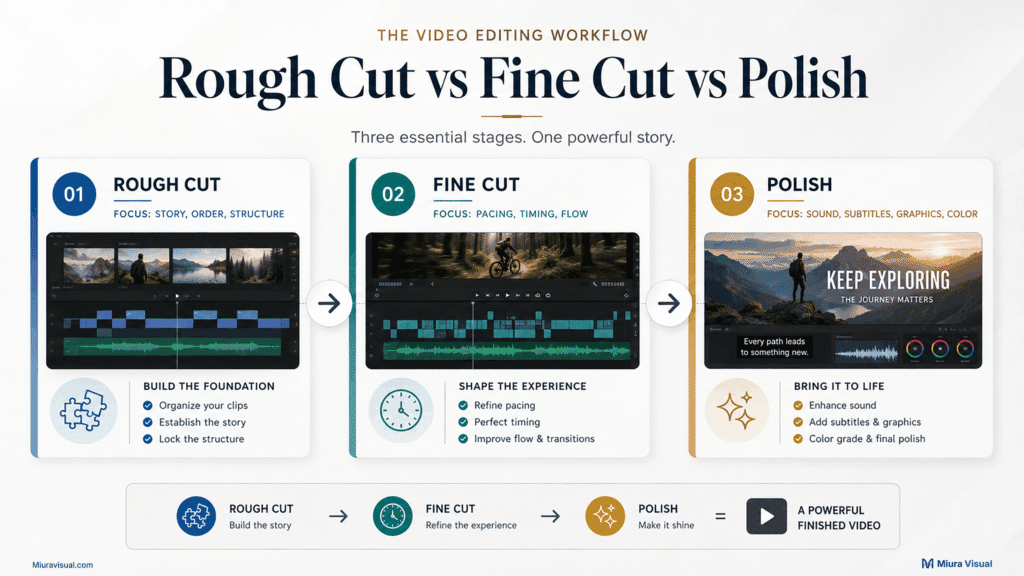
The rough cut is where the video starts to take shape.
Do not polish too early.
Do not start with color grading, fancy transitions, sound effects, or motion graphics.
First, make sure the video works.
Focus on:
- order
- message
- structure
- missing clips
- weak sections
- pacing
The rough cut should answer these questions:
| Question | Why It Matters |
|---|---|
| Does the video make sense? | The viewer should understand the flow |
| Is the order clear? | The scenes should connect logically |
| Is the message strong enough? | The video should not feel random |
| Is anything missing? | You need to catch gaps early |
| Is the pacing too slow? | Weak sections should be removed before polishing |
Do not color grade yet.
Do not add fancy transitions yet.
A rough cut can look ugly.
That is fine.
Fix the structure first.
A weak rough cut cannot be saved by nice effects.
Many edits become slow because people try to make every section beautiful before the video even works.
Step 4 — Turn the Rough Cut Into a Fine Cut
Once the rough cut works, refine it into a fine cut.
This is where you improve the pace, timing, and flow.
Focus on these areas:
| Area | What To Improve |
|---|---|
| Pacing | Remove pauses, drag, and repeated moments |
| Timing | Make cuts feel natural |
| Scene order | Move clips if the flow feels weak |
| Message clarity | Remove anything that does not support the point |
| Emotional rhythm | Let important moments breathe |
| Visual flow | Make shots connect smoothly |
| Hook strength | Make the opening clear and strong |
| Ending | Make the final point clear |
This is where many edits get better fast.
Sometimes the best edit is not the most creative edit.
It is the cleanest one.
If a clip looks nice but does not help the video, remove it.
Pretty footage is not always useful footage.
Step 5 — Add Music, Sound, Subtitles, Graphics, and Color
After the cut works, start polishing.
This is where the video becomes more finished.
You can now add:
- music
- sound effects
- audio cleanup
- subtitles
- lower thirds
- graphics
- color correction
- color grading
- transitions
- logo animation
- final audio level
Each element should serve a purpose.
| Element | Real Purpose |
|---|---|
| Music | Controls mood and rhythm |
| Sound effects | Adds energy or realism |
| Subtitles | Helps viewers follow without sound |
| Graphics | Explains or highlights information |
| Color correction | Makes shots look clean and balanced |
| Color grading | Gives the video a visual direction |
| Transitions | Connects moments without distracting |
For social media videos, subtitles are often important.
Many people watch without sound.
If the message depends on spoken words, subtitles help the video perform better.
For client videos, audio polish is just as important as visuals.
A beautiful video with messy audio feels unfinished.
Polish should support the edit.
It should not hide weak structure.
Step 6 — Export the Final Video in the Right Versions
Exporting is not just clicking one button.
Different platforms need different versions.
A video for Instagram Reels may not be the same as a video for YouTube.
A client review file may not be the same as the final master export.
Before exporting, confirm:
- aspect ratio
- resolution
- file format
- subtitle option
- file size
- naming format
- delivery method
A simple export plan can look like this:
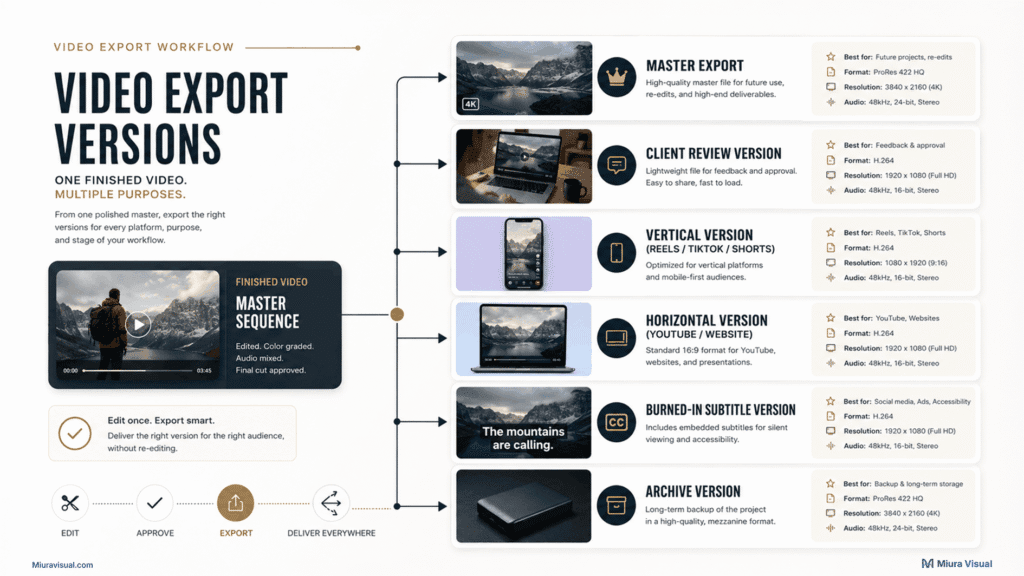
| Export Version | Use Case |
|---|---|
| Master export | Highest-quality final version |
| Client review version | Smaller file for feedback |
| Final delivery version | Approved client or team version |
| Vertical version | Reels, TikTok, YouTube Shorts |
| Horizontal version | YouTube, website, presentation |
| Square version | Feed post or ad placement |
| Burned-in subtitle version | Social media viewing without sound |
| No-subtitle version | Website, archive, or future repurpose |
| Archive version | Long-term storage |
You do not need every version for every project.
But you should decide before final export.
One project can easily become many deliverables.
For example, one brand video may need:
- 16:9 YouTube version
- 9:16 Reel version
- short teaser cut
- client review version
- final approved version
- compressed WhatsApp preview
- archive master
If you only export one version, you may need to reopen the project again later.
That wastes time.
A good video editing workflow prepares the versions intentionally.
Step 7 — Review, Revise, Deliver, and Archive the Final Video
Watch the final version before sending it.
Check:
- wrong cuts
- audio jumps
- subtitle mistakes
- spelling errors
- black frames
- wrong aspect ratio
- wrong file name
- missing export version
Use Timestamp Feedback for Revisions
When reviewing a video, avoid vague feedback like “change this part.”
Use timestamps so the editor knows exactly where to revise.
| Timestamp | Feedback |
|---|---|
| 00:12 | Replace this shot |
| 00:27 | Fix subtitle typo |
| 00:41 | Lower the music volume |
| 01:05 | Use alternate ending |
This makes feedback faster, clearer, and easier to track.
Use Version Numbers for Review Files
After each revision, use simple version numbers.
| File Name | Meaning |
|---|---|
| review-v01.mp4 | First review version |
| review-v02.mp4 | Second review version after feedback |
| review-v03.mp4 | Third review version if needed |
| final.mp4 | Approved final version |
Only use final.mp4 when the video is approved.
Do not call every export “final.”
After delivery, archive the project.
Save:
- final exports
- project files
- raw footage
- music licenses
- graphics
- subtitle files
- client notes
- approved versions
This helps when the client comes back later.
It also helps when you want to repurpose the video.
A finished project should be easy to reopen.
How to Streamline the Editing Process Without Losing Quality
Editing faster does not mean rushing.
It means removing unnecessary decisions.
Here are practical ways to edit faster:
| Method | Why It Works |
|---|---|
| Organize files first | You stop searching for footage |
| Create selects | You edit only useful clips |
| Rough cut before polish | You avoid wasting time on scenes that may be removed |
| Use templates | You reduce setup time |
| Use keyboard shortcuts | You speed up repeated actions |
| Use proxy files | Heavy footage becomes easier to edit |
| Save export presets | You avoid resetting exports every time |
| Keep feedback in one place | Revisions become clearer |
If 4K or high-resolution footage slows your software, use proxy files.
Proxy files are lighter versions of your footage.
You edit with the lighter files.
Then you export using the original quality.
Use proxies when the project is heavy.
Video editing software matters less than the order.
CapCut, Adobe Premiere Pro, DaVinci Resolve, and Final Cut Pro can all support a good workflow.
The key is to organize, select, cut, polish, export, and review in the right sequence.
Do not overcomplicate small edits.
Common Bottlenecks in the Editing Workflow
Most slow edits have the same problems.
| Bottleneck | Why It Happens | Better Workflow Fix |
|---|---|---|
| Footage is messy | Files were not organized before editing | Sort folders before opening the timeline |
| Too much footage | Everything was imported without selection | Create selects before rough cut |
| Edit feels slow | The structure is unclear | Build a rough cut first |
| Timeline gets messy | Too many unused clips and layers | Keep timelines clean and labeled |
| Feedback is confusing | Notes come from too many places | Use one review version and timestamp comments |
| Large files lag | Footage is too heavy for the system | Use proxy files when needed |
| Export versions are unclear | Deliverables were not planned | List needed versions before export |
| Revisions never end | Approval stages are unclear | Separate review, revision, and final delivery |
| Final files are hard to find | Naming system is weak | Use V01, V02, Final, and Archive folders |
A strong workflow does not solve every creative problem.
But it removes avoidable problems.
That gives you more energy for the actual edit.
Video Editing Checklist: What to Check Before Delivery
Use this checklist before finishing a project.
| Stage | Checklist |
|---|---|
| Organize | Footage, audio, music, graphics, and project files are sorted |
| Backup | Raw files are safely stored before editing |
| Review | All footage has been checked |
| Selects | Usable clips are pulled into a selects timeline |
| Rough cut | The basic structure is complete |
| Fine cut | Pacing, timing, and flow are refined |
| Audio | Voice, music, and sound levels are checked |
| Subtitles | Captions are added and proofread if needed |
| Graphics | Text, logos, and motion elements are checked |
| Color | Shots look clean and consistent |
| Export | Correct versions are prepared |
| Review | Final video is watched before delivery |
| Revision | Feedback is handled with version control |
| Archive | Final files and project files are saved clearly |
You do not need a complicated system.
You need a repeatable one.
Common Editing Mistakes to Avoid
A weak editing workflow usually creates the same mistakes.
| Mistake | Why It Hurts |
|---|---|
| Editing without organizing footage | You waste time finding clips |
| Skipping selects | You keep searching through raw footage |
| Polishing too early | You waste time on scenes that may be removed |
| Adding music before structure works | The edit may feel good but still make no sense |
| Color grading too early | You hide problems instead of fixing them |
| Exporting only one version | The file may not fit the final platform |
| Using unclear file names | Revisions become confusing |
| Ignoring archive | You cannot reuse or update the project later |
The biggest mistake is treating every edit like a new battle.
A workflow turns editing into a repeatable process.
That is how you finish more videos without burning out.
Conclusion
A good video editing workflow helps you edit faster because it gives the project a clear path.
The basic flow is simple:
Organize → Select → Rough Cut → Fine Cut → Polish → Export → Review
That order matters.
If you skip organization, the edit becomes messy.
If you skip selects, the timeline gets heavy.
If you skip the rough cut, you polish too early.
If you skip export planning, you create the wrong versions.
The goal is not to make editing mechanical.
The goal is to make editing repeatable.
When the process is clear, you edit faster.
You make fewer mistakes.
You finish more projects without feeling buried by the timeline.
Frequently Asked Questions
What is a video editing workflow?
A video editing workflow is the process used to turn raw footage into a finished video. It usually includes organizing footage, selecting clips, building a rough cut, refining the edit, adding sound and color, exporting versions, and archiving the project.
What is the basic video editing workflow?
The basic video editing workflow is: organize footage, review clips, create selects, build the rough cut, refine the fine cut, add music, subtitles, sound and color, export the right versions, then review and archive the project.
What are the 5 stages of video editing?
The 5 basic stages of video editing are organization, rough cut, fine cut, polish, and export. A more complete workflow may also include selects, review, revisions, delivery, and archive.
What is the 80/20 rule in video editing?
The 80/20 rule in video editing means most of the final quality comes from a few important decisions. Choose the right footage, build a clear rough cut, fix pacing, clean the audio, and export properly. Fancy effects matter less than structure, clarity, and flow.
How long does a video editing workflow take?
It depends on the footage length, project type, revision rounds, and export versions. A short social video may take a few hours. A client video with subtitles, sound, color, and multiple versions takes more time. Adding feedback can also extend the process. A workflow helps reduce wasted time, but it does not make every edit instant.
What does a video editing workflow checklist include?
A video editing workflow checklist should include footage organization, backup, selects, rough cut, fine cut, audio, subtitles, graphics, color, export versions, review, revisions, delivery, and archive. The checklist helps you finish the video without missing important steps.

Miura Visual
Transforming visuals into content, stories, and scalable value across platforms and audiences.
Related Article