Photo Editing Workflow: How to Edit Faster and Keep a Consistent Look
A photo editing workflow helps you finish a full photo set faster and more consistently. This guide shows you how to cull, edit, retouch, review, and export photos without letting unfinished shoots pile up.
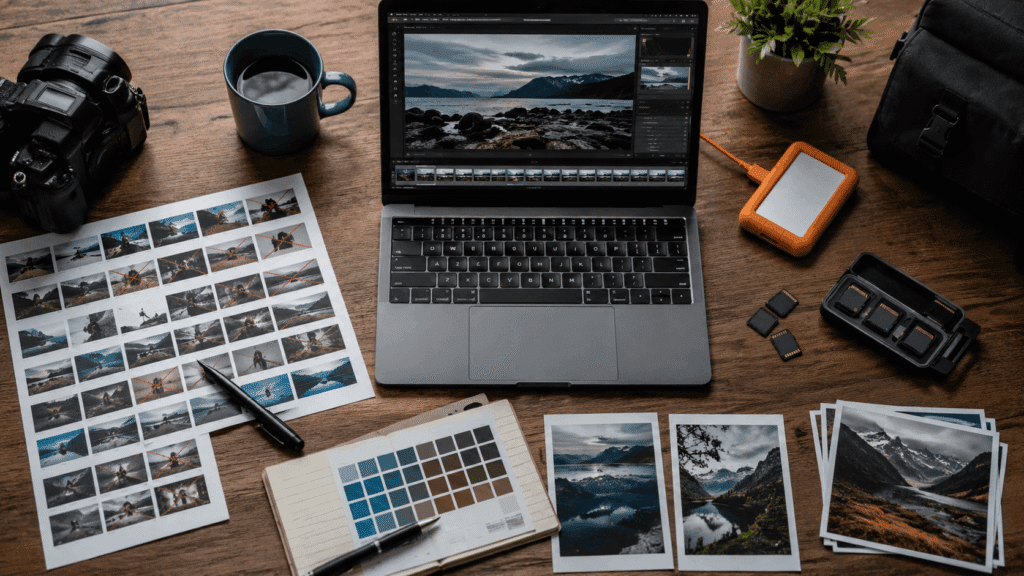
Quick Answer: A Simple Photo Editing Workflow
A good photo editing workflow is simple: cull, correct, style, retouch, review, and export.
It helps you finish faster.
You edit fewer weak photos and stay consistent across the entire set.
| Step | What To Do |
|---|---|
| 1. Cull first | Remove weak, duplicate, or unusable photos |
| 2. Basic correction | Fix exposure, white balance, crop, and lens issues |
| 3. Build consistency | Match tone, color, contrast, and style across the set |
| 4. Retouch only if needed | Use Photoshop for detailed cleanup, not every photo |
| 5. Review the full set | Check if all photos feel connected |
| 6. Export by use case | Prepare files for social media, website, or client delivery |
The goal is not to edit more.
The goal is to move every photo set through the same process so you can finish faster and stay consistent.
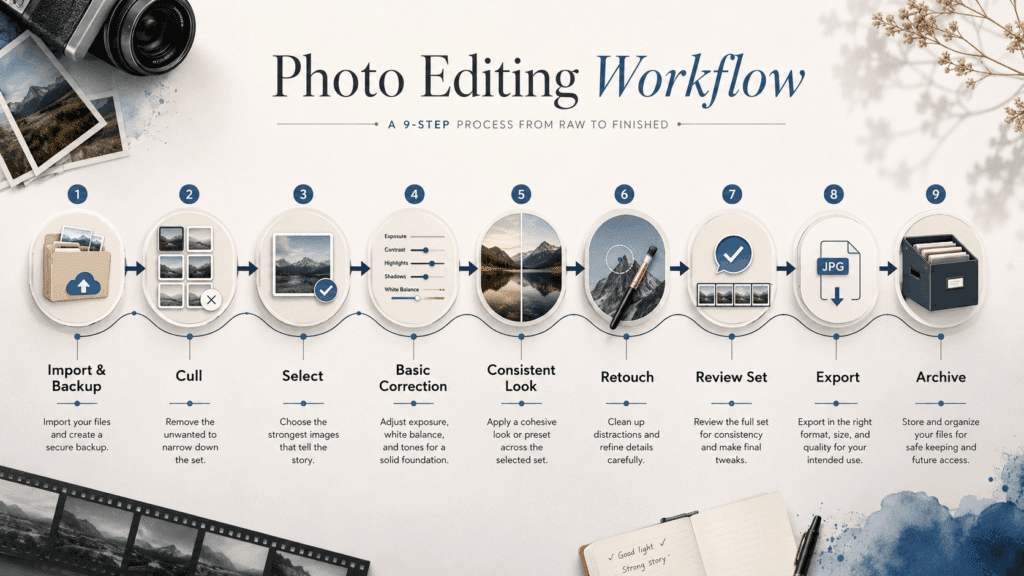
Simple Photo Editing Workflow Flowchart
Use this flow as your starting point:
Import & Backup → Cull → Select → Basic Correction → Style Consistency → Retouch → Review → Export → Archive
This photo editing workflow is simple:
- Protect your files.
- Remove weak images.
- Edit the chosen set.
- Check for consistency.
- Export the correct versions.
- Archive the project.
That is how you avoid spending too much time on photos that should not have been edited in the first place.
What Is a Photo Editing Workflow?
A photo editing workflow is the process you repeat to turn raw photos into finished images.
It covers how you select, edit, retouch, review, export, and organize photos after a photo shoot.
A good photo editing process helps you answer these questions:
| Common Editing Problem | Better Workflow Decision |
|---|---|
| Too many photos to edit | Filter hard before editing. Only edit images that are useful for the final purpose. |
| Every photo starts to look different | Correct exposure and white balance first, then apply the style across the full set. |
| Lightroom feels too limited | Use Lightroom for batch correction and consistency. Use Photoshop only for detailed fixes. |
| Photoshop is slowing everything down | Do not send every image into Photoshop. Retouch only hero shots or images that need cleanup. |
| The final set does not feel connected | Review all selected images together before export, not one photo at a time. |
| Photos keep piling up after every shoot | Finish each project with a clear export and archive step before starting the next batch. |
This is different from a single photo editing tutorial.
A tutorial teaches one effect.
A clear process helps you finish an entire photo set.
Who Needs a Photo Editing Workflow?
You need a photo editing workflow if you shoot often and your photos keep piling up.
This is useful for:
| Creators Type | Why It Helps |
|---|---|
| Content creators | Prepare photos for social media, blogs, and campaigns faster |
| Freelance photographers | Finish client photos faster and avoid backlog |
| Portrait photographers | Keep skin tone, color, and mood consistent across a set |
| Event photographers | Process large batches without editing everything manually |
| Product photographers | Keep angles, color, and detail consistent |
| Small creative teams | Create a repeatable editing process for different editors |
This article is not mainly for someone who has never edited a photo before.
It is for people who already know the basics but want a smoother system.
You may already know how to adjust exposure, contrast, color, or crop.
The real problem is usually not knowledge.
The real problem is order.
Step 1 — Cull Before You Edit
Do not process everything.
This is the first rule.
Culling means selecting the photos worth editing before you start detailed work.
Many photographers waste time by opening a full shoot and adjusting photos too soon.
That creates two problems.
- You spend time working on weak images.
- The final set gets harder to control. Too many photos compete for attention.
A simple selection process:
| Pass | What To Do |
|---|---|
| First pass | Remove blurry, badly exposed, duplicated, or unusable photos |
| Second pass | Shortlist the strongest photos |
| Third pass | Compare similar images and keep the best version |
| Final pass | Choose the photos that match the shoot purpose |
Do not choose only based on what looks nice.
Choose based on what the photo needs to do.
A clean website image may be more useful than a dramatic but messy image.
A simple portrait may work better for a profile page than a heavily stylized shot.
A good cull saves time before the real work starts.
Step 2 — Start With Lightroom Editing: Exposure and White Balance
Lightroom is usually the best place to start.
It is built for handling many photos at once.
Use it to clean up the full set before doing detailed cleanup.
Start with the basic Lightroom sliders:
| Basic Correction | Why It Matters |
|---|---|
| Exposure | Helps the image look right without clipping the histogram |
| White balance | Fixes color cast and keeps color temperature consistent |
| Contrast | Gives the image shape |
| Crop | Improves framing and final use |
| Lens correction | Fixes distortion and chromatic aberrations |
| Straightening | Cleans up tilted lines |
| Highlight and shadow control | Helps recover detail and avoid blown highlights |
Do this before adding heavy color style.
If the photo is not clean yet, styling can hide problems instead of fixing them.
For example:
If the white balance is off, a preset can make the image look more “styled.” But the skin tone or product color might still seem wrong.
Basic correction is not the exciting part.
But it is the part that keeps the whole set stable.
Step 3 — Build a Consistent Look With Presets and Manual Adjustments
Consistency matters more than over-editing.
A photo set should feel like one project.
It should not feel like every image came from a different moodboard.
To keep the look consistent, check these areas:
| Area | What To Watch |
|---|---|
| Exposure | Are some images too bright or too dark compared with the rest? |
| White balance | Do the images feel warm, cool, or mixed randomly? |
| Skin tone | Does the subject look natural across the set? |
| Contrast | Is the overall punch similar? |
| Color direction | Are the colors moving in the same visual direction? |
| Crop style | Does the framing feel connected? |
| Background tone | Are distractions becoming too obvious? |
This is where presets can help, but they should not control everything.
A preset is a starting point.
It is not a final answer.
If you apply a preset and stop there, some photos may look good while others fall apart.
The better approach is:
- Correct the photo first.
- Apply or build the style.
- Adjust each image only as much as needed.
- Review the full set together.
The final goal is not to make every image identical.
The goal is to make the full set feel intentional.
Step 4 — Use Photoshop Only When the Photo Needs Retouching
Lightroom and Photoshop should not do the same job.
Lightroom is for batch editing, selection, basic correction, and overall style.
Photoshop is for detailed retouching.
Use Photoshop when you need to fix something specific, such as:
| Photoshop Task | Example |
|---|---|
| Healing brush cleanup | Remove temporary blemishes or distractions |
| Remove tool / object removal | Remove unwanted items from the background |
| Background cleanup | Fix messy edges, marks, or visual clutter |
| Advanced masking | Separate subject and background more precisely |
| Compositing | Combine or adjust elements in a more controlled way |
| Detail retouching | Refine product, fabric, hair, or small distractions |
Do not send every image to Photoshop.
That is how editing becomes slow.
For most shoots, only a few selected images need deeper cleanup.
The rest may only need Lightroom correction, style adjustment, and export.
A good editing system protects Photoshop for where it actually matters.
Lightroom vs Photoshop in a Photo Editing Workflow
| Tool | Best For | Use It When |
|---|---|---|
| Lightroom | Culling, batch editing, color correction, basic adjustments, export | You need to process many photos quickly |
| Photoshop | Retouching, cleanup, compositing, advanced detail work | A selected photo needs detailed editing |
A simple Lightroom Photoshop workflow can look like this:
| Stage | Tool |
|---|---|
| Import and organize | Lightroom |
| Cull and rate photos | Lightroom |
| Basic corrections | Lightroom |
| Style direction | Lightroom |
| Detailed retouching | Photoshop |
| Final color check | Lightroom or Photoshop |
| Export | Lightroom |
This order keeps the process clean.
Lightroom handles the full photo set.
Photoshop handles the special cases.
That alone can save a lot of time.
Step 5 — Check the Full Photo Set Before Export
Do not check only one photo at a time.
A photo may look good alone but feel wrong inside the full set.
Before export, review the selected photos together.
Look for:
| Check | Question To Ask |
|---|---|
| Exposure | Do the photos feel balanced as a group? |
| Color | Is the color direction consistent? |
| Skin tone | Does the subject look natural across different shots? |
| Crop | Do the framing choices make sense together? |
| Retouching | Are some images overworked compared with others? |
| Distractions | Are there background issues you missed? |
| Final usage | Are the images ready for where they will be used? |
This step is important for client work, portfolios, brand shoots, social media, and website images.
A consistent final set feels more professional.
It also makes delivery easier.
You are not just exporting edited files.
You are delivering a finished visual set.
Step 6 — Export Photos for the Right Use Case
Exporting is part of the workflow.
Do not use one export setting for everything.
Different uses need different versions.
| Use Case | Export Consideration |
|---|---|
| Crop ratio, sharpness, file size, carousel order | |
| Website | Compression, dimensions, file name, alt text |
| Client delivery | High-resolution and web-size versions |
| Portfolio | Quality, loading speed, visual consistency |
| Product listing | Clear detail, accurate color, consistent size |
| Ads | Strong subject visibility and platform-friendly format |
For client work, use a simple folder structure for high-resolution files, web-size files, preview images, and final delivery.
For website use, rename JPEG files clearly. Avoid names like IMG_8392-final-final.jpg.
Use descriptive names like brandname-product-photo-final-01.jpg.
A clean export system makes it easier to deliver, reuse, and find your photos later.
It also helps when a client, team member, or future version needs the files again.
Common Photo Editing Workflow Mistakes
Most editing problems are not caused by bad taste.
They are caused by a weak process.
| Mistake | Why It Hurts |
|---|---|
| Editing before culling | You waste time on weak photos |
| Fixing style before basic correction | The photo may look styled but still feel wrong |
| Sending every image to Photoshop | The workflow becomes too slow |
| Using presets without adjustment | The set becomes inconsistent |
| Checking only single images | The full set may not feel connected |
| Exporting only one version | The file may not fit the final use |
| Not archiving properly | You may not find the project later |
The biggest mistake is treating every photo like a separate project.
That slows everything down.
A better process treats the full set as one connected job.
Simple Photo Editing Workflow Checklist
Use this checklist before you call a photo set finished.
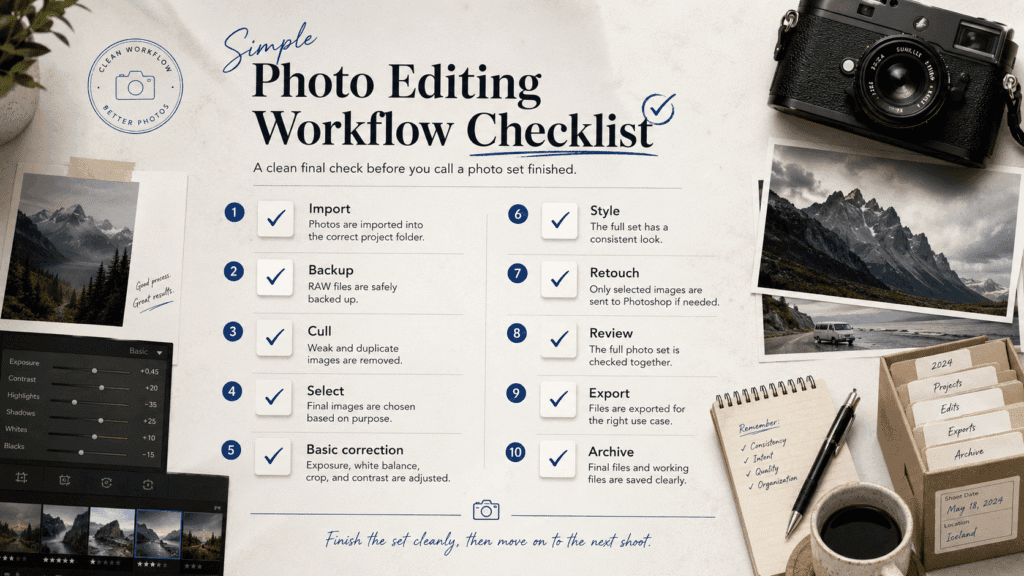
| Stage | Checklist |
|---|---|
| Import | Photos are imported into the correct project folder |
| Backup | RAW files are safely backed up |
| Cull | Weak and duplicate images are removed |
| Select | Final images are chosen based on purpose |
| Basic correction | Exposure, white balance, crop, and contrast are adjusted |
| Style | The full set has a consistent look |
| Retouch | Only selected images are sent to Photoshop if needed |
| Review | The full photo set is checked together |
| Export | Files are exported for the right use case |
| Archive | Final files and working files are saved clearly |
You do not need a complicated system.
You need a repeatable one.
The goal is to finish the shoot cleanly, not leave it half-done in your hard drive.
How to Edit Photos Faster With a Repeatable Editing Process
Speed does not mean rushing.
Speed comes from removing unnecessary decisions.
Here are simple ways to edit faster:
| Method | Why It Works |
|---|---|
| Cull first | You process fewer photos |
| Edit in batches | You avoid repeating the same correction manually |
| Use presets carefully | You create a faster starting point |
| Sync basic corrections | You keep similar images consistent |
| Retouch only key images | You avoid wasting time on minor photos |
| Review the full set | You catch consistency problems before export |
| Use clear export folders | You avoid confusion after editing |
The point is not to become lazy.
The point is to spend your attention where it matters.
Not every photo deserves the same amount of time.
A hero image may need full retouching.
A supporting image may only need clean correction.
A behind-the-scenes image may just need quick adjustment.
A clear system helps you decide that faster.
Final Thoughts on Building a Better Photo Editing Workflow
A good photo editing workflow helps you finish your work with less stress.
It gives every photo set a clear path:
Cull → Correct → Style → Retouch → Review → Export
That order matters.
If you skip culling, you edit too much.
If you skip basic correction, your style becomes unstable.
If you overuse Photoshop, your delivery slows down.
If you skip the final set review, the photos may not feel consistent together.
The goal is not to make editing mechanical.
The goal is to protect your time and creative energy.
A clear editing process helps you finish one shoot well.
Then, you can move on to the next without leaving unfinished work behind.
That is what a strong photo editing workflow is really for.
Frequently Asked Questions
What is a photo editing workflow?
A photo editing workflow is the process that changes raw photos into final images. It usually includes culling, basic correction, style adjustment, retouching, review, export, and archiving.
Should I cull photos before editing?
Yes. Cull before editing. This helps you avoid wasting time on weak, duplicate, or unusable photos. A strong editing workflow starts by choosing the right images first.
Should I use Lightroom or Photoshop first?
Start with Lightroom for culling, batch editing, basic correction, color direction, and export. Use Photoshop later for detailed cleanup, object removal, background cleanup, or advanced editing.
How can I edit photos faster?
Edit faster by culling first, batching similar corrections, using presets as a starting point, syncing basic edits, and sending only key images to Photoshop. The goal is to reduce repeated decisions.
How do I keep my photo editing consistent?
Keep your photo editing consistent by correcting exposure and white balance first, applying a clear style direction, checking the full set together, and adjusting images that feel too different from the rest.
Do all photos need Photoshop retouching?
No. Not every photo needs Photoshop. Most images may only need Lightroom correction and styling. Use Photoshop for detailed cleanup, object removal, background cleanup, or advanced editing.
What should I export after editing photos?
Export based on the final use. Social media may need smaller platform-ready files. Websites need compressed images with clear file names. Clients may need both high-resolution and web-size versions.

Miura Visual
Transforming visuals into content, stories, and scalable value across platforms and audiences.
Related Article