WordPress Application Password Not Showing? What to Check First
A WordPress Application Password can disappear even when your site already uses HTTPS. We ran into this on Miura Visual and first checked SSL and WordPress settings. The actual fix was elsewhere: a Hostinger setting was disabling Application Passwords.
Quick Answer
If your WordPress Application Password is not showing, check HTTPS first. Your live website should load securely. The WordPress Address and Site Address should also use https://.
If HTTPS is already working, stop troubleshooting SSL. Check whether your host or a security tool has disabled Application Passwords.
For Hostinger websites, go to:
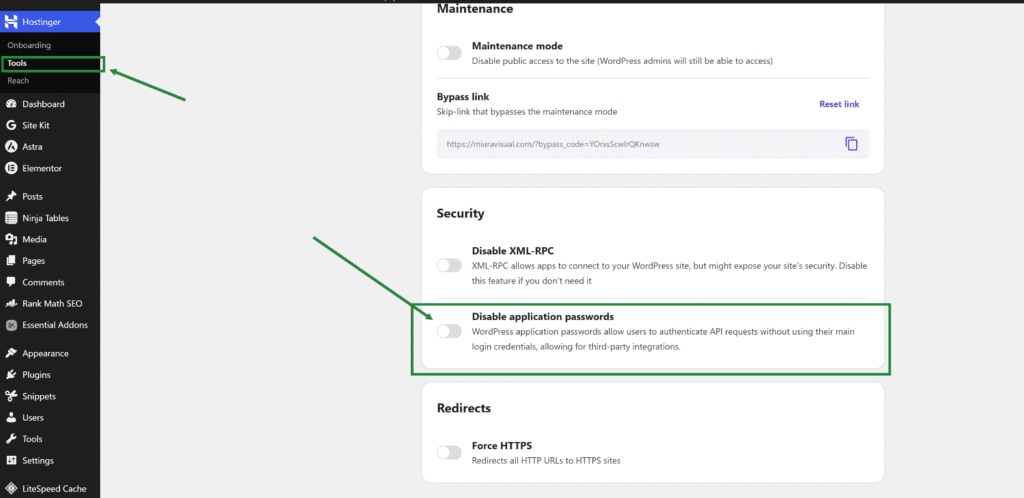
WordPress Dashboard → Tools → Hostinger Tools → Disable application passwords
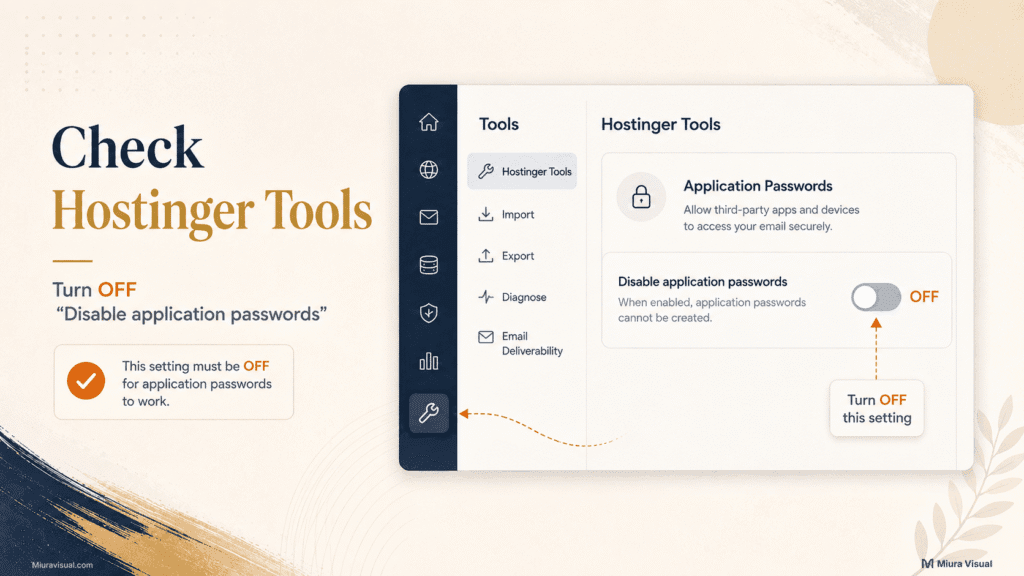
Make sure Disable application passwords are turned OFF.
That was the setting we needed to change on Miura Visual. After turning off that restriction, the Application Password option became available again.
Why Was Our WordPress Application Password Not Showing?
We noticed the problem while working inside our own Miura Visual WordPress website.
WordPress was not generating the Application Password we needed.
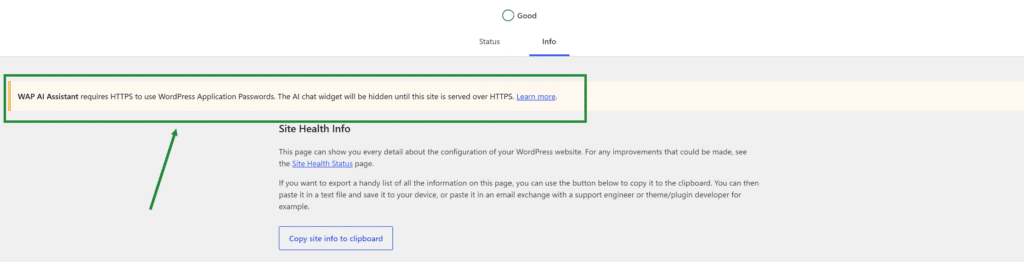
An HTTPS-related warning made SSL look like the obvious place to start.
That was reasonable.
Application Passwords help ensure secure connections.
If there’s an HTTPS problem, this feature may not work.
But there was one important question:
Was HTTPS actually broken?
We started by checking the current website setup.
We didn’t disable plugins or alter server files.
That helped us avoid troubleshooting the wrong part of the site.
First, We Checked Whether HTTPS Was Actually the Problem
If WordPress says you need HTTPS for an Application Password, check it first.
Don’t change anything else until you do.
We checked three areas on Miura Visual.
1. Check the website in your browser
Open the live website using: https://yourdomain.com
The site should load normally over HTTPS.
It should not redirect back to HTTP or show an obvious certificate warning.
If the live site does not have working HTTPS, fix that first.
Do not force Application Passwords on a live HTTP website just to bypass the requirement.
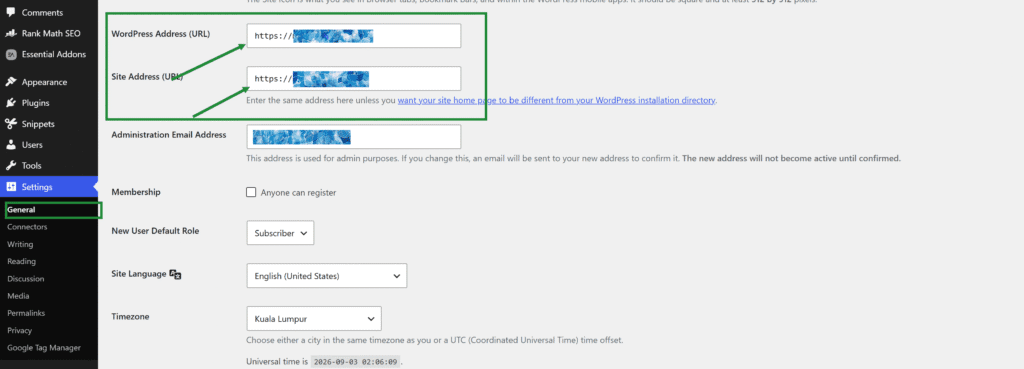
2. Check the WordPress Address
Go to:
Settings → General
Look at:
- WordPress Address (URL)
- Site Address (URL)
Both should normally start with: https://
On Miura Visual, these addresses were already using HTTPS.
3. Check the SSL status
We also confirmed that SSL was active.
Reinstalling SSL certificates or changing HTTPS settings would have led us astray.
Our website was already using HTTPS correctly.
Decision rule: if your browser, SSL status, and WordPress URLs all confirm HTTPS, move to the next layer. Do not keep troubleshooting SSL.
If You Use Hostinger, Check “Disable Application Passwords”
This was an important step in our case.
Hostinger provides its own settings inside WordPress under:
Tools → Hostinger Tools
There is an option called:
Disable application passwords
The wording can be easy to misread.
If that option is enabled, Application Passwords are blocked.
To use Application Passwords, the Disable application passwords setting needs to be OFF.
Our troubleshooting path was:
- Open Tools in the WordPress admin.
- Select Hostinger Tools.
- Find Disable application passwords.
- Turn the option OFF.
- Save the setting if required.
- Return to the WordPress profile.
- Check whether the Application Passwords section is available.
Hostinger also documents this setting in its official WordPress MCP setup guide.
The guide centers on linking AI tools via MCP. However, the setting is applicable in a wider context.
If Hostinger blocks Application Passwords, changing SSL settings won’t help.
That was a useful lesson from our own case.
A secure HTTPS connection is one check.
An enabled Application Password feature is another.
How We Confirmed the Application Passwords Section Was Available Again
Changing a setting is not the same as confirming the problem is fixed.
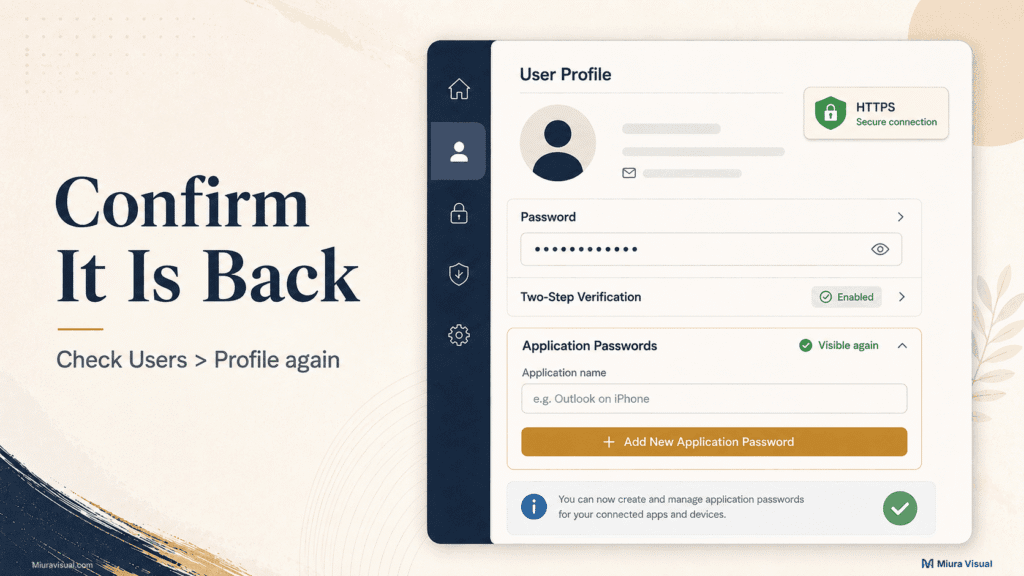
After changing the Hostinger setting, return to your WordPress user profile.
Go to:
Users → Profile
Then look for the Application Passwords section.
A working setup lets you input an application name.
Then, it generates a new Application Password.
That gives you a simple verification sequence:
- HTTPS is working.
- WordPress URLs use HTTPS.
- Application Passwords are not disabled in Hostinger Tools.
- The Application Passwords section appears in the user profile.
- WordPress can generate a new password.
If those checks pass, there’s no need to change unrelated WordPress settings.
This is why verification matters after every troubleshooting step.
Otherwise, you may make several changes and lose track of what actually fixed the problem.
Still Missing? Check What Else Can Disable Application Passwords
The Hostinger setting will not explain every missing Application Password section.
If you’re not using Hostinger or the settings are fine, see if something else in WordPress is blocking the feature.
Check security plugin settings
WordPress security plugins can change how the site handles authentication and external access.
Look through the settings of any security plugin installed on the site.
Search for options related to:
- Application Passwords
- REST API access
- API authentication
- external applications
- user authentication
Do not disable the entire security plugin immediately.
Check its settings first.
If one clear option manages Application Passwords, change that option.
Don’t turn off the whole plugin.
Check must-use plugins or custom code
WordPress allows developers and plugins to control whether Application Passwords are available.
A custom function or must-use plugin can also be responsible.
This is a deeper troubleshooting step.
Check it only after ruling out HTTPS, hosting, and security settings.
Separate a Missing Application Password From an API Authentication Error
Do not mix two different problems.
This article covers cases where the Application Password feature is:
- missing;
- disabled;
- unavailable; or
- blocked before you can generate a password.
If WordPress generates an Application Password but your third-party application returns a 401 or authentication error, you are dealing with a different problem.
At that point, investigate the WordPress REST API connection and authentication request.
Do not keep trying to make the Application Password section appear.
What We Would Check Before Disabling Plugins or Editing Server Files
The most useful outcome from this incident was not one Hostinger toggle.
It was the troubleshooting order.
If the same problem happens again, we’ll begin with the easiest checks.
Then, we’ll dive into more technical ones.
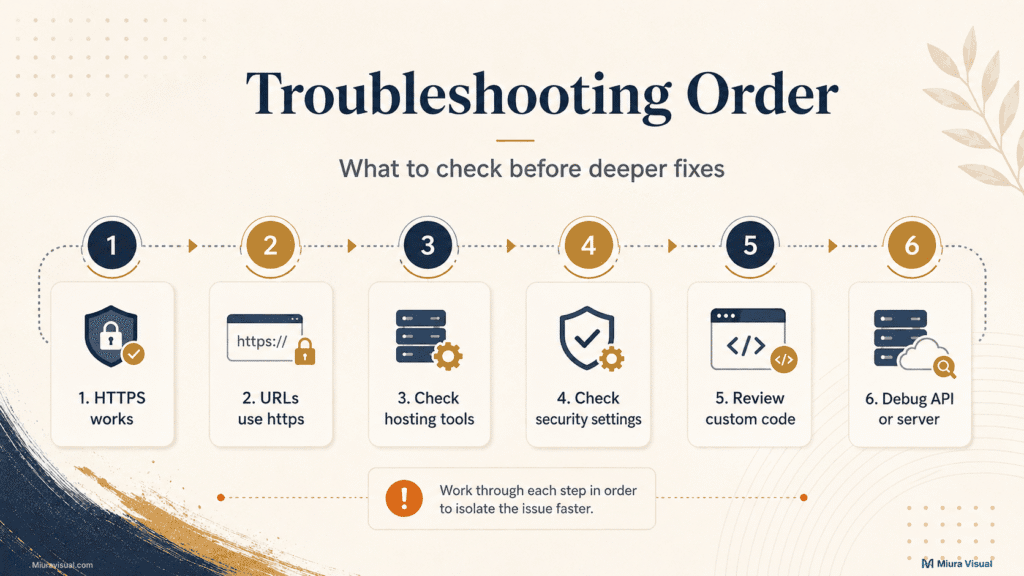
1. Confirm HTTPS
Make sure the live site loads securely.
If HTTPS is broken, solve that first.
2. Confirm the WordPress URLs
Check that the WordPress Address and Site Address use HTTPS.
This takes less than a minute and rules out an obvious configuration issue.
3. Check hosting-level controls
Check if the site uses HTTPS.
If it does, see if the hosting integration has an Application Password setting.
For Hostinger, that means checking Hostinger Tools.
4. Check security plugin settings
Find a setting that disables Application Passwords.
Look for options to turn off REST API access or external authentication, too.
Change the relevant option instead of deactivating plugins blindly.
5. Check custom code and must-use plugins
Move into code-level troubleshooting only after ruling out simpler controls.
6. Investigate Deeper REST API or Server Problems
Server configuration and REST API troubleshooting should come later.
This is more important when the Application Password feature is available.
However, the connection still fails.
This order matters because several reasonable-looking fixes can create unnecessary work.
We would not start by:
- disabling every plugin;
- editing .htaccess;
- changing wp-config.php;
- installing another SSL plugin;
- modifying server settings without a clear reason.
Those steps may be necessary for a different problem.
They should not be your first response to a missing Application Password.
👉 If you prefer these checks as part of an ongoing website routine, our WordPress website maintenance work includes basic website health, SSL, plugin, and administrative checks.
Conclusion: Fix the Layer That Is Actually Blocking Application Passwords
If your website does not have working HTTPS, fix HTTPS first.
If HTTPS already works, do not keep changing SSL settings.
Check whether your host or a security tool has disabled Application Passwords.
For Hostinger users, Tools → Hostinger Tools → Disable application passwords is worth checking early.
Turning off that restriction was what resolved the issue on Miura Visual.
Start with the simplest check that can explain the problem.
Troubleshoot plugins, code, or server issues only after checking the simpler causes.
Frequently Asked Questions
Do WordPress Application Passwords require HTTPS?
For a typical live WordPress site, Application Passwords should work over HTTPS. Secure your website if it still uses HTTP. Do this before trying to bypass the restriction.
Can a WordPress plugin disable Application Passwords?
Yes. Plugins and custom WordPress code can control whether Application Passwords are available. Check security and authentication settings before disabling an entire plugin.
Why is my Application Password still missing after enabling HTTPS?
HTTPS may not be the only blocker. Check hosting controls. Review security plugin settings. Look at any custom code that could disable Application Passwords. Hostinger users should also check the Disable application passwords option under Hostinger Tools.

Miura Visual
Transforming visuals into content, stories, and scalable value across platforms and audiences.