
How to Update WordPress Plugins
Keeping your WordPress plugins updated helps maintain website security, compatibility and performance. This guide shows you how to update WordPress plugins using two simple methods.
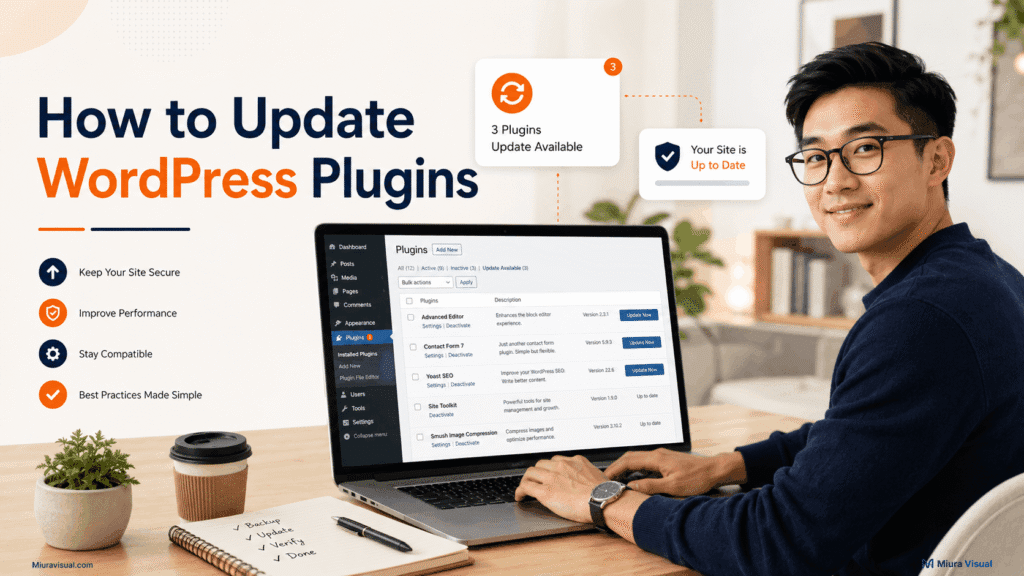
Before you begin: Make sure your website has a recent backup. Do not close or refresh the page while an update is running.
Quick Answer
You can update plugins using either method:
- Use the WordPress Updates page when you want to update several plugins at the same time.
- Use the Installed Plugins page when you only want to update one specific plugin.
Method 1: How to Update WordPress Plugins from the Updates Page
Step 1: Open the Updates Page
Log in to your WordPress dashboard.
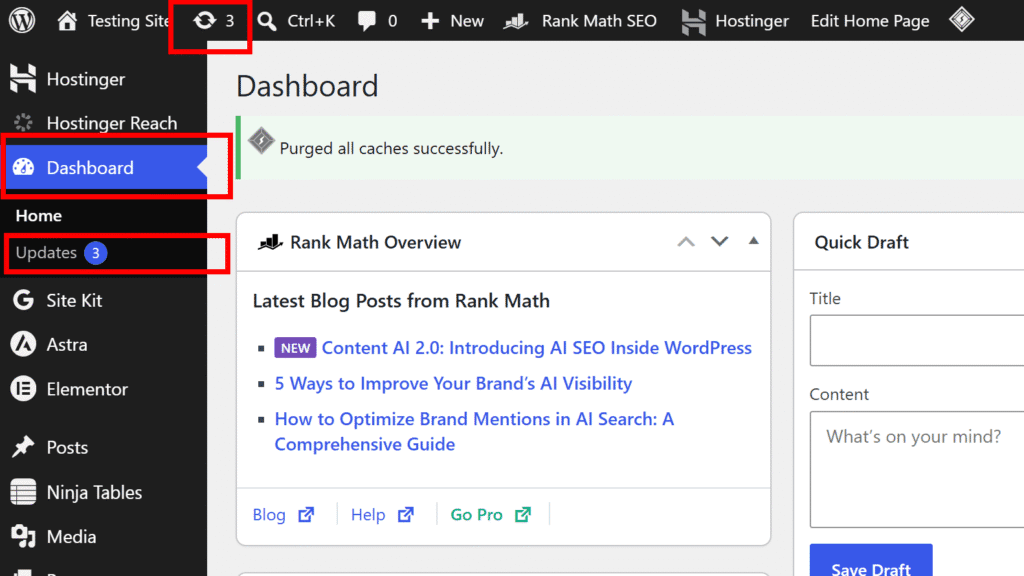
Click Dashboard → Updates from the left menu.
You can also click the circular update icon in the top admin bar.
Step 2: Select the Plugins
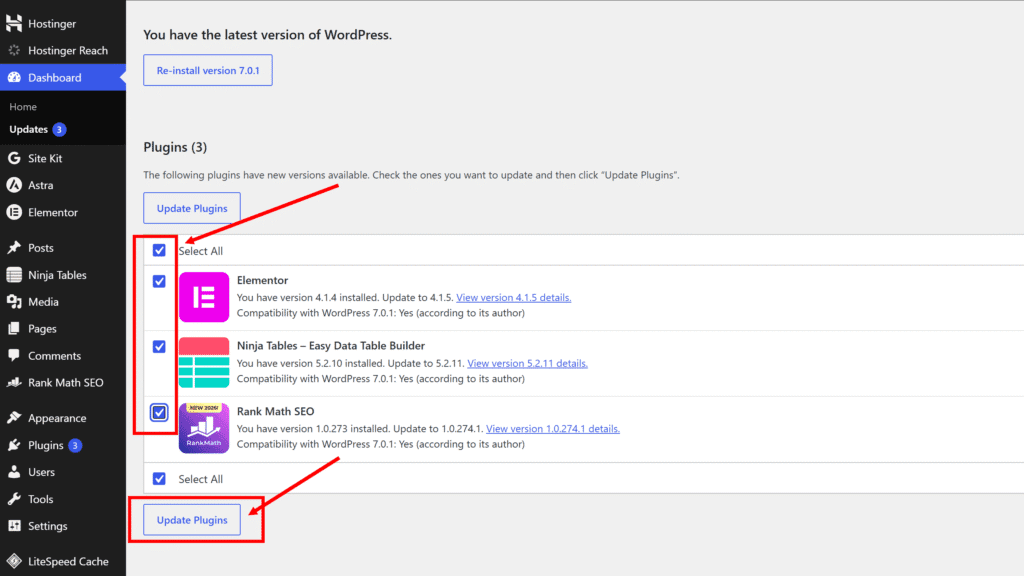
Scroll down to the Plugins section.
Tick the plugins you want to update. You may also use Select All to select every available plugin update.
Click Update Plugins. Only select plugin updates. Do not click Re-install WordPress.
Step 3: Wait for the Update to Finish
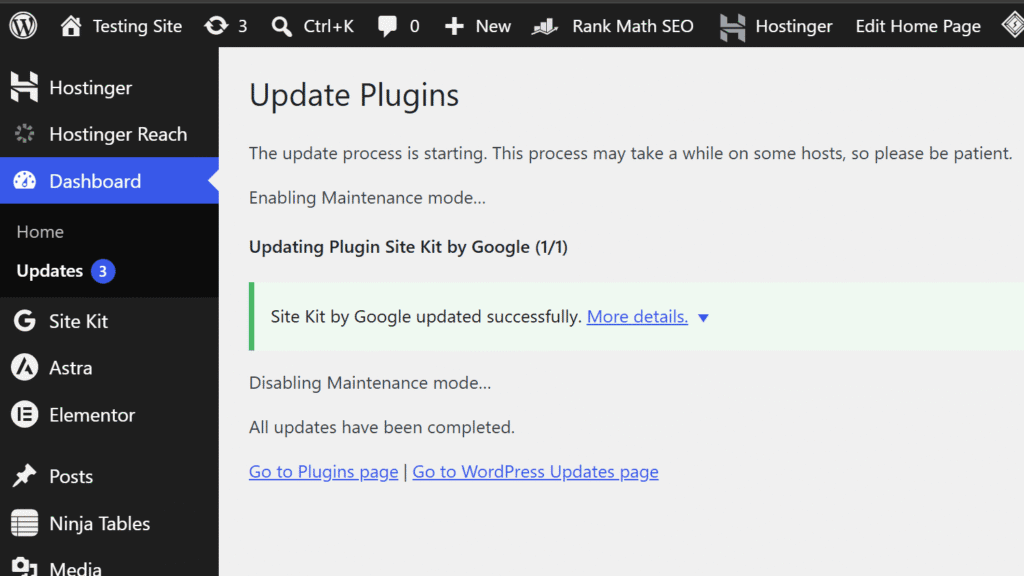
WordPress will temporarily enable maintenance mode and begin updating the selected plugins.
Do not refresh, close or leave the page during this process.
When you see “All updates have been completed”, the plugin updates are finished.
Method 2: Update a Plugin from the Installed Plugins Page
Step 1: Open the Plugins Page
From your WordPress dashboard, go to:
Plugins → Installed Plugins
Find the plugin that has an available update.
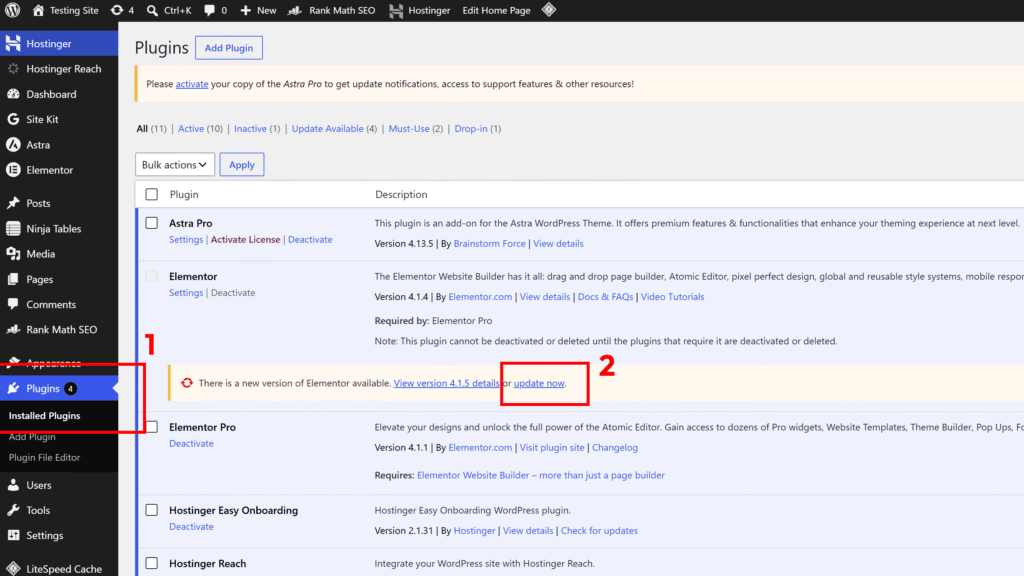
Step 2: Click “Update Now”
Under the plugin information, click Update now.
WordPress will begin downloading and installing the latest plugin version.
Step 3: Wait for the Confirmation
Do not refresh or close the page while the plugin shows “Updating…”.
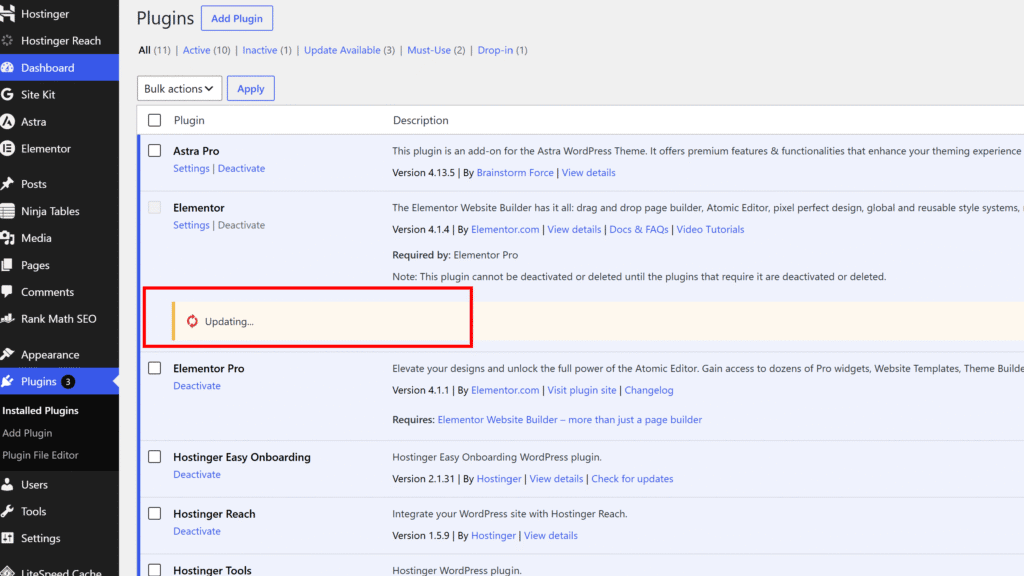
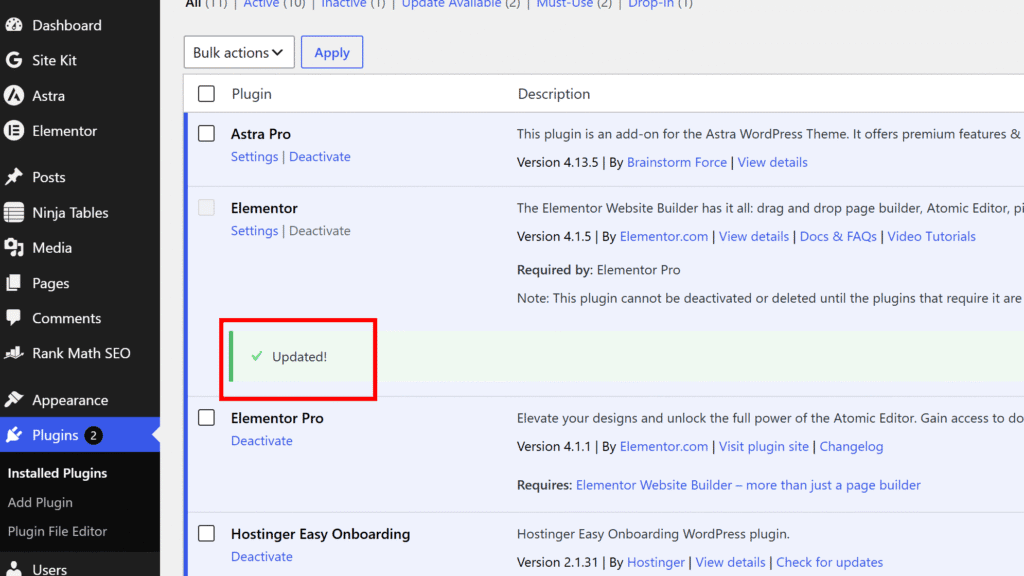
Once the update is complete, the message will change to “Updated!”.
After Updating the Plugins
Open your website in a new tab and check the following:
- The homepage loads normally.
- The website layout still looks correct.
- Buttons, forms and menus are working.
- No error messages appear.
You may also clear your website cache after completing the updates.

Miura Visual
Transforming visuals into content, stories, and scalable value across platforms and audiences.